Chatbot & AI agent API
You can seamlessly integrate custom chatbots or intelligent AI agents into your Now4real pagechats. This integration enables automated, context-aware interactions with your users, boosting engagement and providing 24/7 support for your instant communities.
✨ Looking for a ready-to-use AI solution? If you want to deploy LLM agents (like Claude or OpenAI) without building a custom backend webhook, check out our official OpenClaw plugin. It allows you to inject advanced AI agents directly into your Now4real chats with zero coding required.
However, if you want to build a fully custom bot, connect your own logic, or handle real-time message webhooks directly, continue reading below to learn how our API works.
How does it work?
For each new chat message, your system can receive a notification through a REST call (webhook), enabling your agent to process the context and respond promptly to continue the conversation.
Implementing the service—which acts as the REST endpoint for incoming notifications—is straightforward. You can build it using your favorite framework and deploy it on your own infrastructure or via a serverless architecture. Your service has the freedom to process chat messa
Your chat service can handle the webhook invocation in one of two ways:
Option A:
Process the message and return the response synchronously within the webhook HTTP response.
Option B:
Return immediately with an empty object and publish the response asynchronously via the Now4real REST APIs.
Activating your chatbot or AI agent in Now4real
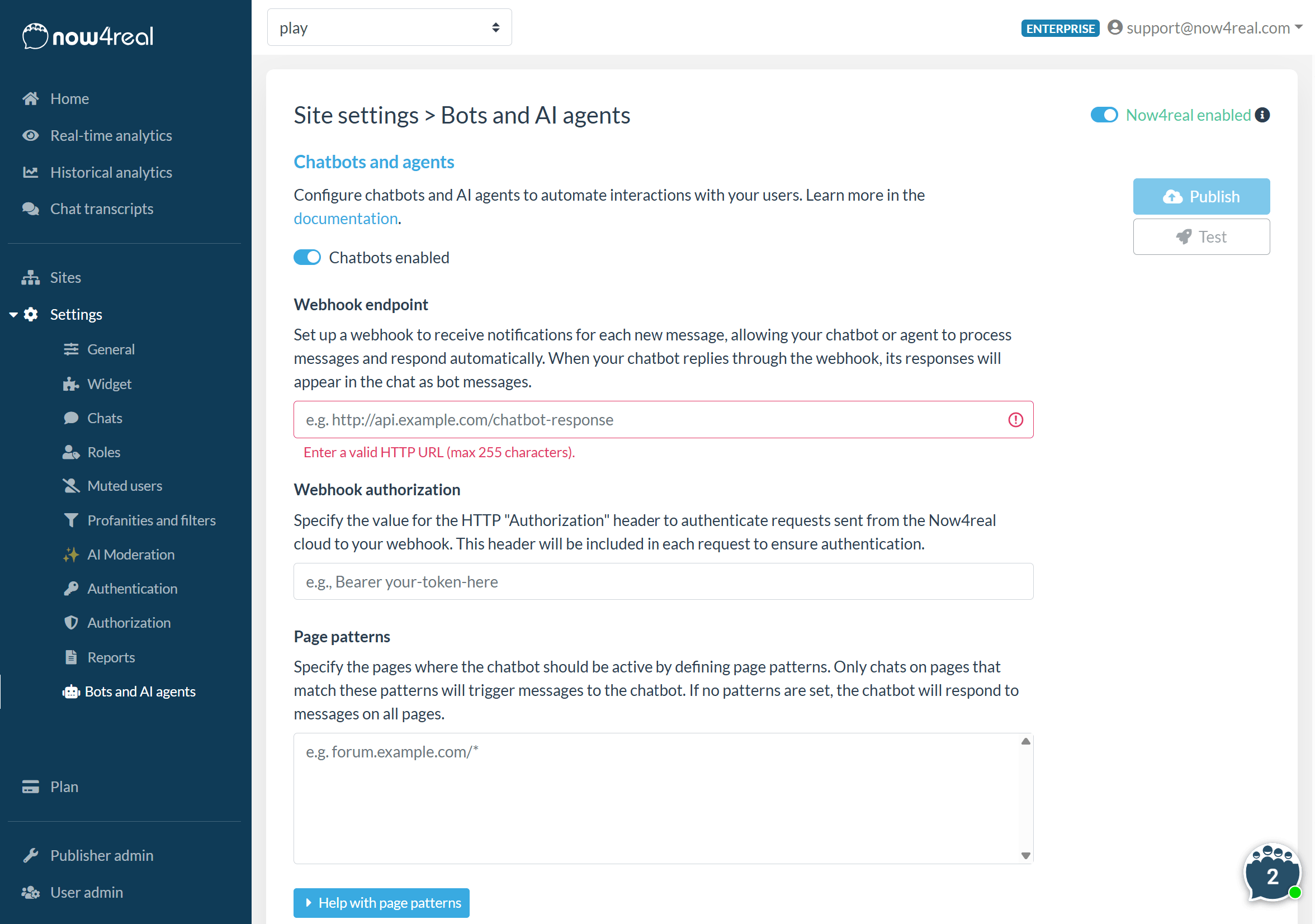
Once you have developed your chatbot or agent based on the documentation below, you can configure, test, and activate it through the Now4real Publisher Dashboard. This process is simple and requires a verified site.
Follow these steps:
- Log in to your Now4real Dashboard.
- Navigate to the “Bots and AI agents” section within your site’s settings.
- Toggle the activation switch to enable the chatbot.
- Enter your chatbot’s URL into the “Webhook endpoint” field.
- Click the “Test” button to verify the connection.
- If the test is successful, click “Publish” to confirm and deploy your chatbot.
That’s it! Your chatbot is now live and ready to interact with visitors on your site.
API request and response overview
Now4real performs an HTTPS call (HTTP can also be used for testing), sending a plain JSON payload.
The request includes:
- context: Helps determine the chat page the user is interacting with.
- chat: All messages currently loaded in the user’s active view, including the message the user is responding to.
- newMessage: The content of the new message that triggered the API call.
In return, your service can respond with:
- a full JSON response (user, newMessages, suggestions) to publish synchronously.
- an empty JSON object {} to skip immediate publish and continue asynchronously.
As a general guideline, asynchronous delivery is usually the most robust option for AI-generated replies, while synchronous webhook responses remain a good fit for low-latency handlers.
Detailed request format
When Now4real receives a user message, it sends an HTTP POST to your endpoint.
Below is an example of the request format:
{
  "context": {
    "site": "now4real.test",
    "page": "/chatbot"
  },
  "chat": {
    "messages": [
      {
        "id": "m1",
        "time": "2000-01-01T12:01:00",
        "user": {
          "id": "hfre1",
          "displayName": "Adam",
          "jwtSub": "user1",
          "authProvider": "JWT"
        },
        "content": "Can you help me?"
      },
      {
        "id": "m2",
        "time": "2000-01-01T12:02:00",
        "user": {
          "id": "pungobg",
          "displayName": "Chat Bot",
          "jwtSub": "bot",
          "authProvider": "CHATBOT"
        },
        "content": "Sure!"
      }
    ]
  },
  "newMessage": {
    "id": "m3",
    "time": "2000-01-01T12:03:00",
    "user": {
      "id": "hfre1",
      "displayName": "Adam",
      "jwtSub": "user1",
      "authProvider": "JWT"
    },
    "replyMessageId": "m2",
    "content": "Suggest me something"
  }
}
Fields:
- context: identifies the chat where the user’s attention is currently focused.
- context.site: maps to the Site Context of the page and identifies the site hosting the chat, for example now4real.test.
- context.page: maps to the Page Context of the page and identifies the specific page hosting the chat, for example /chatbot; if chat scope is site-wide, context.page is always /.
- chat: represents the current visible chat state from the user’s perspective.
- chat.messages (array): all messages currently loaded in the user’s active view without requiring additional action (such as scrolling up or clicking “load more”) to fetch older history. Includes the triggering message and provides immediate conversation context for generating a reply.
- chat.messages[].id: unique message identifier, useful when replying to a specific message.
- chat.messages[].time: message timestamp in ISO 8601 format.
- chat.messages[].content: actual message text shown in the chat; if it is an empty string, it means the message has been deleted.
- chat.messages[].user: sender metadata, including id, displayName, and optionally jwtSub when JWT authentication is used.
- chat.messages[].replyMessageId: optional identifier of the parent message being replied to.
- newMessage: is the message that triggered the webhook and is the key input for your bot; it has not yet been published in the chat when your service receives the request.
- newMessage.id: unique identifier of the message that triggered the webhook.
- newMessage.time: timestamp of the message that triggered the webhook, in ISO 8601 format.
- newMessage.user: sender metadata for the message that triggered the webhook, including id, displayName, and optionally jwtSub when JWT authentication is used.
- newMessage.replyMessageId: identifier of the message the user is replying to, when the new message is part of a threaded reply.
- newMessage.content: content of the message the user is sending.
Response options
Option A: synchronous webhook response
In synchronous processing mode, Now4real waits for your webhook to complete processing before publishing the response. Your webhook returns messages that are then immediately posted in the chat.
During this waiting period, user interaction in the chat is blocked. It is therefore recommended to respond quickly in order to avoid degrading the user experience and to prevent reaching the 10-second timeout limit.
Example response payload:
{
  "user": {
    "displayName": "Chat Bot",
    "displayIcon": "https://example.test/chatbot.png"
  },
  "newMessages": [
    {
      "content": "Chat on Now4real",
      "replyMessageId": "m3"
    }
  ],
  "suggestions": [
    "Great!",
    "Thank you"
  ]
}
Fields:
- user: chatbot identity shown in the published message.
- user.displayName: display name used for the chatbot in the chat UI.
- user.displayIcon: optional absolute URL of the avatar image shown for the chatbot.
- user.jwtSub: optional chatbot subject identifier used to distinguish the chatbot identity; if omitted, the default value is chatbot.
- newMessages: array of messages to publish immediately in the webhook response; you can send up to 10 messages in a single response, and if the array is empty, no messages are added to the chat.
- newMessages[].content: message text to publish, up to 1000 characters; it supports a limited subset of Markdown for basic formatting, including bold and italic text, line breaks, and simple bullet or numbered lists.
- newMessages[].replyMessageId: optional identifier of the message being replied to.
- suggestions: array of suggestion strings shown to the user as selectable quick replies.
Option B: asynchronous publish (recommended for AI latency)
If generation can exceed webhook timing constraints, respond quickly with {} and publish later using REST APIs.
Typical flow:
- Receive webhook invocation.
- Return HTTP 200 with {}.
- Call typing API (typing: true).
- Run LLM/business logic.
- Call sendMessage API with final message(s).
- Call typing API (typing: false).
REST APIs for asynchronous publishing
All asynchronous chatbot APIs are exposed under the following base URL:
https://integrator-api.now4real.com
Requests must include the Authorization header with the same chatbot webhook authorization configured in Now4real.
1) Typing API
Use this API to show or hide the chatbot typing indicator in the target chat while your asynchronous logic is still running. It is typically called before message generation starts and again after the final response has been published.
- Method: POST
- Path: /rest/v1/chatbot/typing
Example request payload:
{
  "context": {
    "site": "now4real.test",
    "page": "/chatbot"
  },
  "user": {
    "displayName": "Chat Bot",
    "displayIcon": "https://example.test/chatbot.png",
    "jwtSub": "chatbot"
  },
  "typing": true,
  "timeout": 8
}
Fields:
- context: identifies the target chat where the typing indicator must be shown or hidden.
- context.site: site hosting the target chat, for example now4real.test.
- context.page: page hosting the target chat, for example /chatbot; if chat scope is site-wide, use /.
- user: chatbot identity associated with the typing indicator.
- user.displayName: chatbot name shown to users in the chat UI.
- user.displayIcon: optional absolute URL of the chatbot avatar shown in the chat UI.
- user.jwtSub: optional chatbot subject identifier used to distinguish the chatbot identity; if omitted, the default value is chatbot.
- typing: true to enable the typing indicator, false to disable it.
- timeout: optional duration in seconds for how long typing should remain active when typing=true; if provided, it must be between 5 and 60 seconds; if omitted, the default is 10 seconds.
2) Send message API
Use this API to publish the chatbot’s final message or messages to the target chat after your asynchronous processing has completed. This is the call that actually adds the response content to the conversation.
- Method: PUT
- Path: /rest/v1/chatbot/message
Example request payload:
{
  "context": {
    "site": "now4real.test",
    "page": "/chatbot"
  },
  "user": {
    "displayName": "Chat Bot",
    "displayIcon": "https://example.test/chatbot.png",
    "jwtSub": "chatbot"
  },
  "newMessages": [
    {
      "content": "Sure, here are three useful options.",
      "replyMessageId": "m3"
    }
  ]
}
Fields:
- context: identifies the target chat where the new messages must be published.
- context.site: site hosting the target chat, for example now4real.test.
- context.page: page hosting the target chat, for example /chatbot; if chat scope is site-wide, use /.
- user: chatbot identity used for the published messages.
- user.displayName: chatbot name shown to users in the chat UI.
- user.displayIcon: optional absolute URL of the chatbot avatar shown in the chat UI.
- user.jwtSub: optional chatbot subject identifier used to distinguish the chatbot identity; if omitted, the default value is chatbot.
- newMessages: array of messages to publish; you can send up to 10 messages in a single call.
- newMessages[].content: message text to publish, up to 1000 characters.
- newMessages[].replyMessageId: optional identifier of the message being replied to.
cURL examples (async mode)
Below are some example cURL commands showing how to call the asynchronous APIs for enabling typing, publishing a message, and disabling typing.
Authorization must match your configured chatbot webhook authorization.
Typing ON
curl -X POST "https://integrator-api.now4real.com/rest/v1/chatbot/typing" \
  -H "Content-Type: application/json" \
  -H "Authorization: <YOUR_WEBHOOK_AUTHORIZATION>" \
  -d '{
    "context": { "site": "now4real.test", "page": "/" },
    "user": {
      "displayName": "Chat Bot"
    },
    "typing": true,
    "timeout": 8
  }'
Send message
curl -X PUT "https://integrator-api.now4real.com/rest/v1/chatbot/message" \
  -H "Content-Type: application/json" \
  -H "Authorization: <YOUR_WEBHOOK_AUTHORIZATION>" \
  -d '{
    "context": { "site": "now4real.test", "page": "/" },
    "user": {
      "displayName": "Chat Bot"
    },
    "newMessages": [
      {
        "content": "Asynchronous response completed."
      }
    ]
  }'
Typing OFF
curl -X POST "https://integrator-api.now4real.com/rest/v1/chatbot/typing" \
  -H "Content-Type: application/json" \
  -H "Authorization: <YOUR_WEBHOOK_AUTHORIZATION>" \
  -d '{
    "context": { "site": "now4real.test", "page": "/" },
    "user": {
      "displayName": "Chat Bot"
    },
    "typing": false
  }'
Extra: Automated moderation
By configuring an AI agent on Now4real, you can enable not only automated responses to user messages but also advanced moderation capabilities. While our out-of-the-box AI Moderation already features a fully customizable moderation policy, your custom agent can completely override it. The agent analyzes incoming messages and blocks any that are offensive, off-topic, or in violation of community guidelines by returning a simple JSON response indicating that the message should not be published.
{
  "moderation": {
    "publish": false
  }
}
When a message is moderated:
- The user is notified that their message has been blocked.
- Depending on your implementation, the system can allow the user to retry sending a message later.
This approach ensures a safe and engaging chat experience by applying moderation rules tailored to your specific requirements.
Add Now4real to your site today
Easy. Free. Instant.
Let visitors chat, discover hot pages, and build instant communities—right on your website.


Details and disclaimer


